Customers
Contacts maps one exact email address to an owner. Customers maps a whole account to one — and matching isn't limited to a sender's address or domain.
If an incoming email matches any one of five identifying fields you give it — the customer's name, its domain, an alias, its customer number, or its contract number — ReplyFabric checks the incoming email, its sender address and its content, against each of them and assigns it to that account's owner. It's an "account manager override": every email tied to that account goes to the same person, regardless of who specifically sent it, what address they used, or what it's about — including someone new at that company you've never individually added, as long as the email references something else that identifies the account, like a contract number.
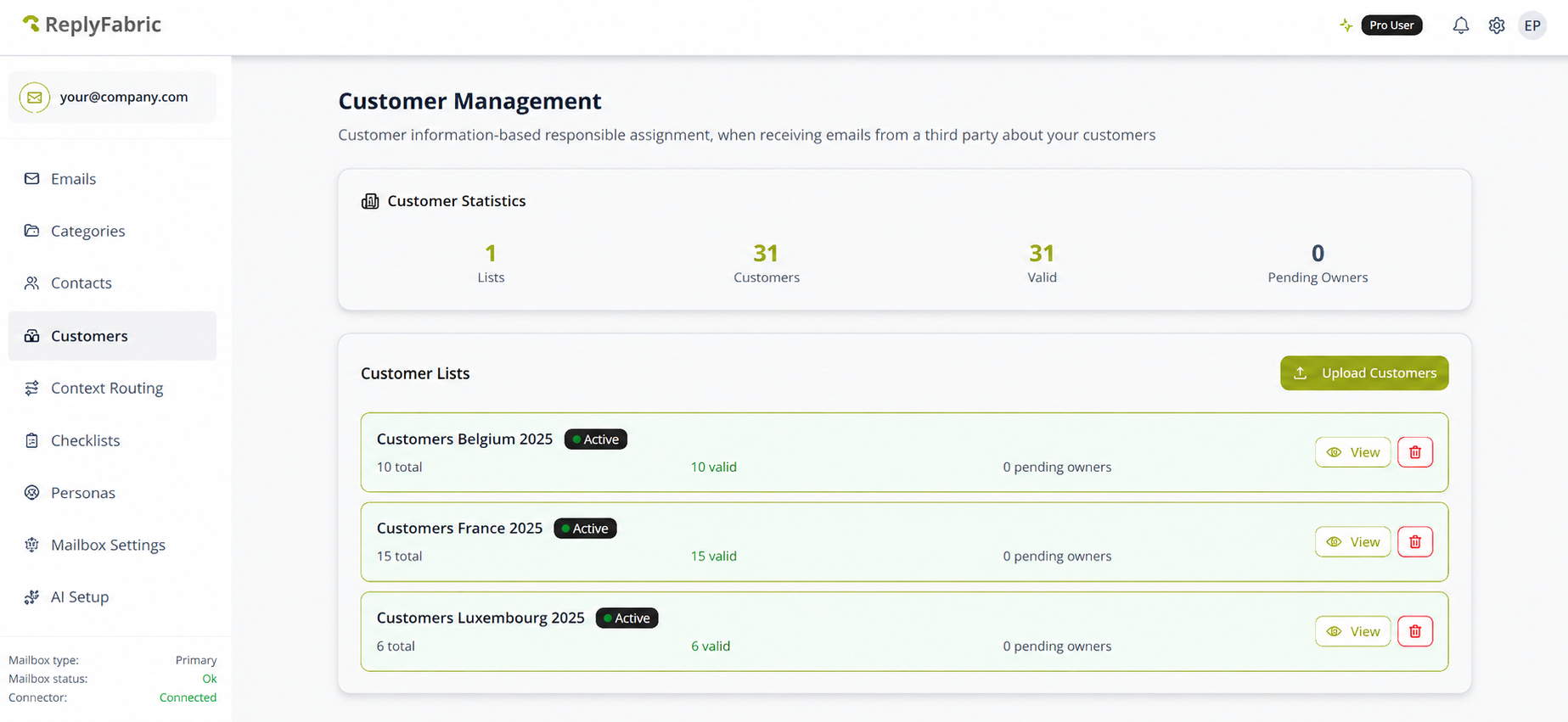
Find it under Customers in the sidebar.
This isn't opt-in. Every category's Responsible assignment source already checks your customer list by default, before falling back to its own responsible person — activating a list changes routing for every category at once, not just the one you had in mind. It also runs before Contacts: if a sender matches both a Customer account and an individual Contact entry, the Customer match wins. See Category Management if you want a specific category to ignore either list.
Preparing your list
A customer list is a CSV with six columns. An email only has to match one of the first five to route — it doesn't need to hit all of them:
customer_namecustomer_domainaliases— alternate spellings of the same company, semicolon-separatedcustomer_numbercontract_number
The real example makes the payoff clear: 10 customer rows, but only 2 distinct owners — one account manager responsible for five accounts each, not five separate one-off mappings.
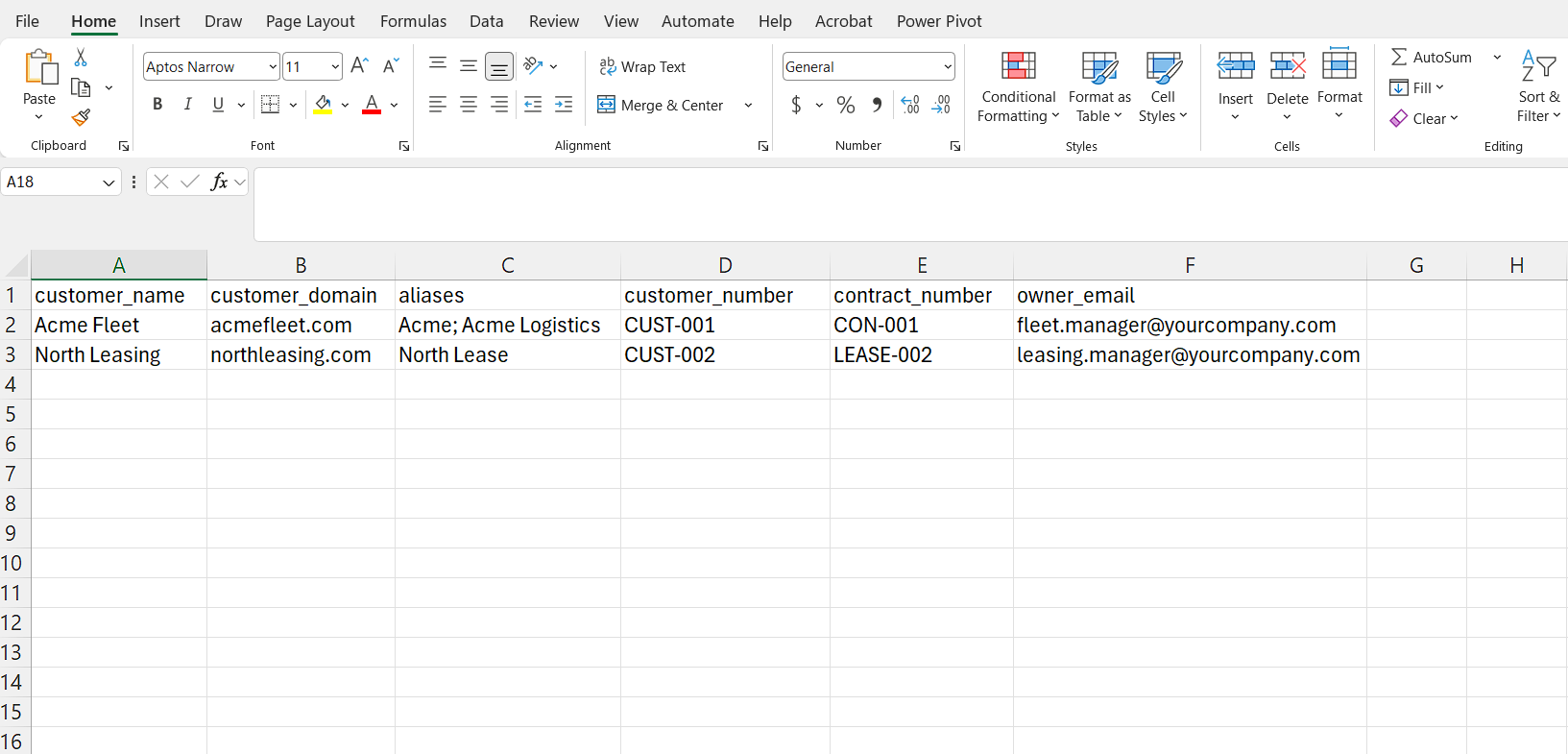
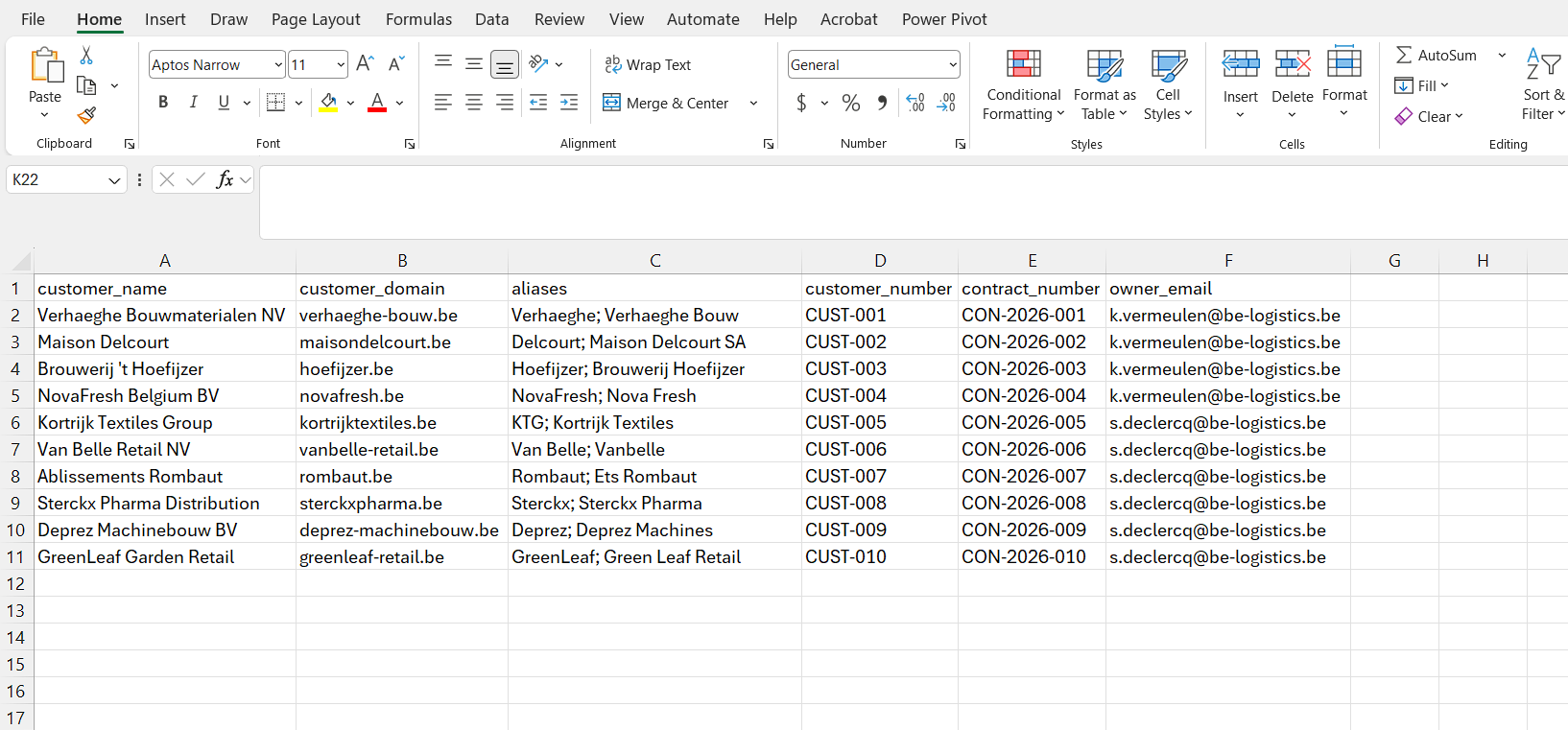
owner_emailis the sixth column, and the only one that isn't a match field — it's the destination, not something ReplyFabric matches against. Same rule as Contacts: it must be one of your own teammates, never the customer's own address.
Uploading it
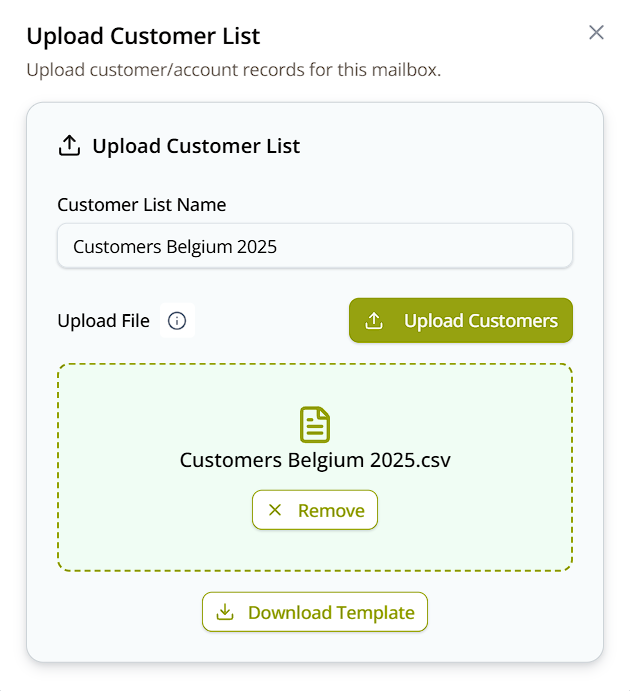
Click Upload Customers, name the list, and upload the CSV — or grab Download Template from the same dialog first if you don't have a file yet.
Validating owners
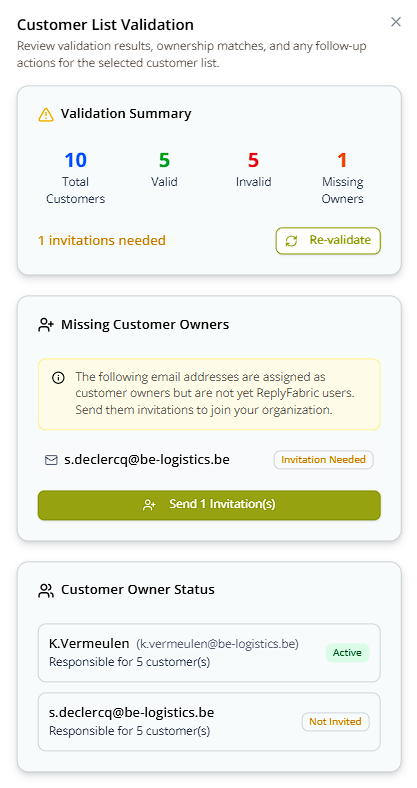
Same as Contacts: every owner_email needs to be a real, active ReplyFabric user. If one isn't yet, ReplyFabric
flags it and offers to send an invitation directly from the validation screen — its status flips from "Not
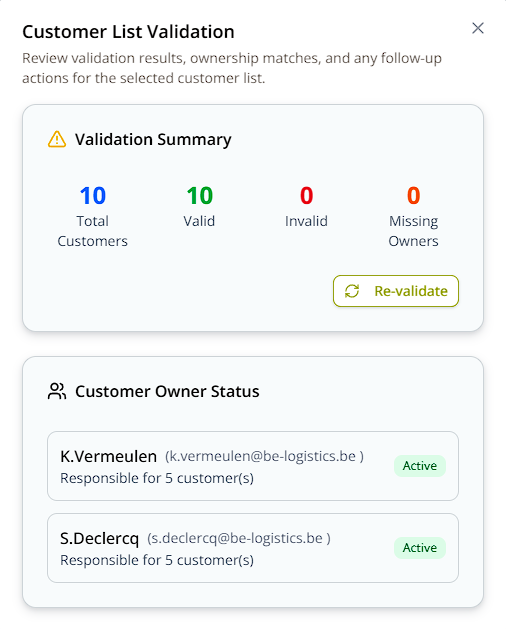
Invited" to "Invited" as soon as you send it, and once every owner is valid, the whole list is resolved:
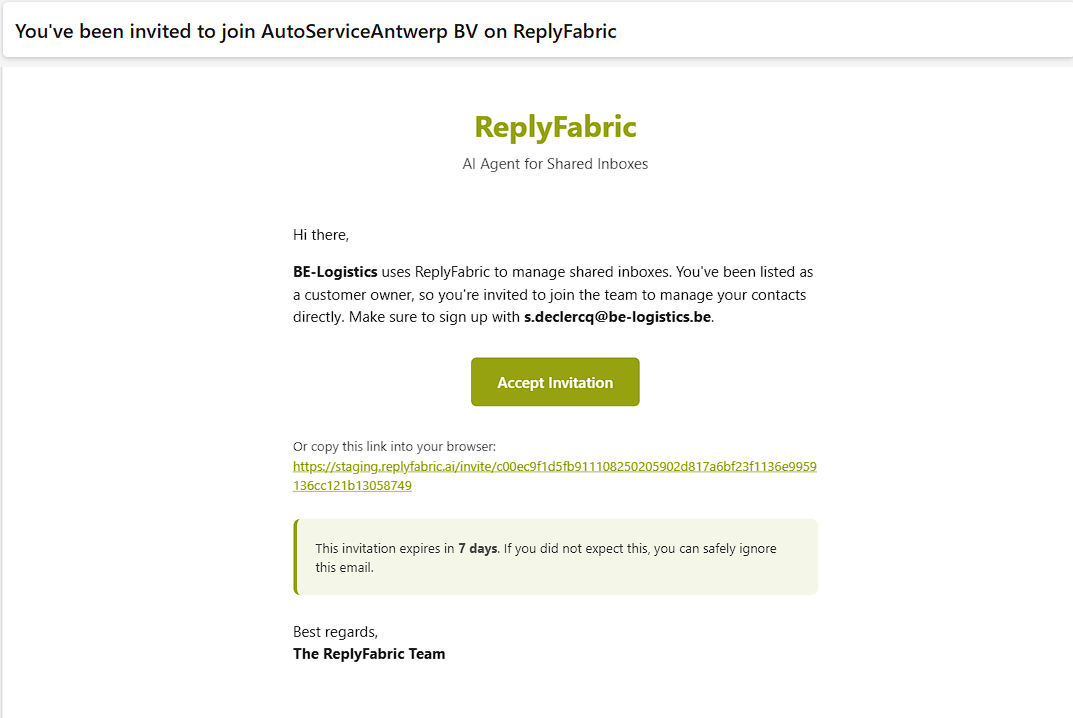
Here's exactly what that teammate receives:
Unlike Contacts, there's no separate manual activation step here — once every owner is valid, the list shows as Active in the Customers overview.
Seeing it work
The effect is the same mechanism already shown with a real example in Contacts: the matched account's owner becomes that email's responsible person, which is why the thread picks up their Internal Responsible Initials label and why an AI-drafted reply signs off in their name.
Dispatch-Only Mode currently runs on an active Contact list specifically — a Customer list doesn't drive it (see Mailbox Settings: Details & Dispatch-Only Mode).
What's next
- Category Management: Settings, Templates & Persona — assign "Customer list, then category default" as a category's Responsible assignment source.
- Contacts — the individual-level counterpart, matching by exact sender address instead of by account.