Contacts
In a shared inbox, whoever's free answers — not necessarily the person who actually knows that customer. A long-standing account manager's emails can land with someone who's never spoken to them before, and the history that made the relationship work goes with it.
Contacts fixes that without needing a CRM: upload a list mapping each sender to the teammate who owns them, once, and ReplyFabric routes their emails to that person automatically — as part of a category's own routing, or mailbox-wide via Dispatch-Only Mode, which skips categorization entirely and forwards straight to the owner. There's also a separate Customers list for assigning ownership at the account/domain level instead of per individual sender — this article covers Contacts specifically.
Find it under Contacts in the sidebar.
This isn't opt-in. Every category's Responsible assignment source already checks your contact list by default, before falling back to its own responsible person — activating a list changes routing for every category at once, not just the one you had in mind. If a sender also matches a Customers account, that match wins instead. See Category Management if you want a specific category to ignore either list.
Preparing your list
A contact list is a CSV with four columns: first_name, last_name, email, and owner_email.
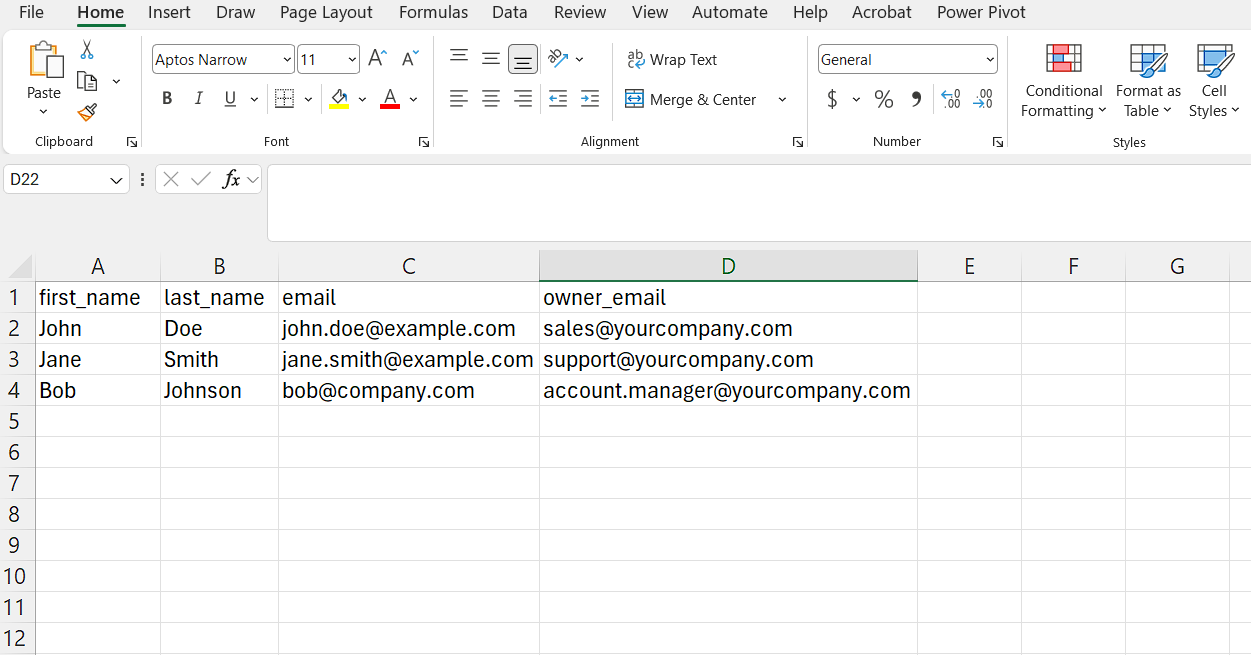
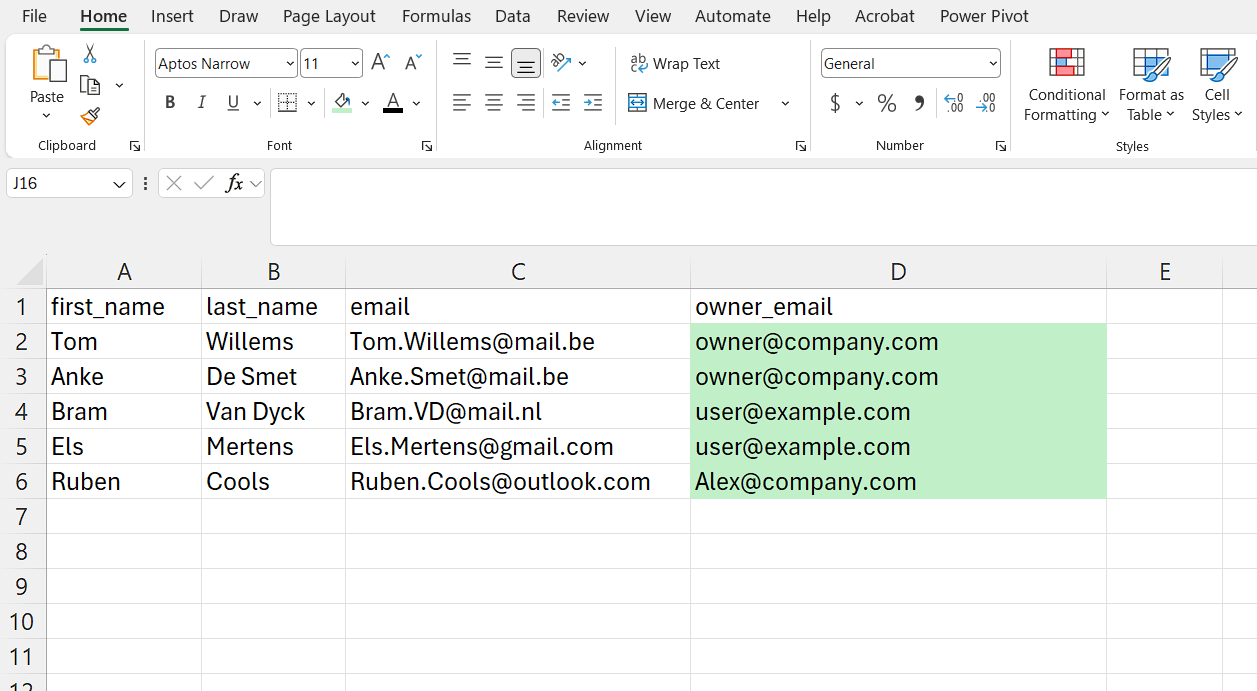
owner_emailmust be one of your own teammates — an existing ReplyFabric user in your organization, not the contact's own address. It's who that row's emails get routed to, not who they're from.
Uploading it
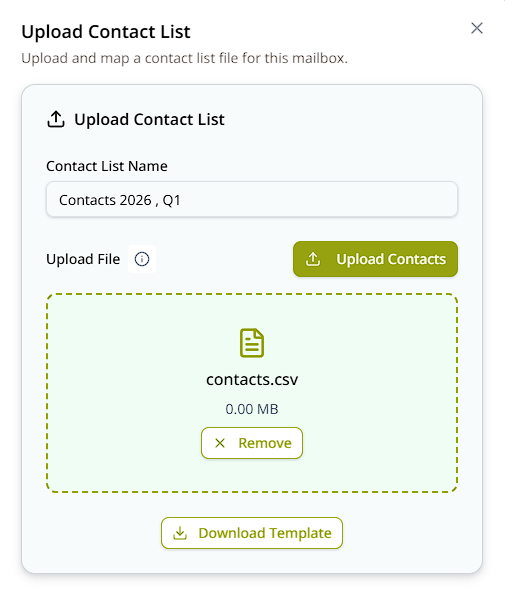
Click Upload Contacts, give the list a name, and upload the CSV.
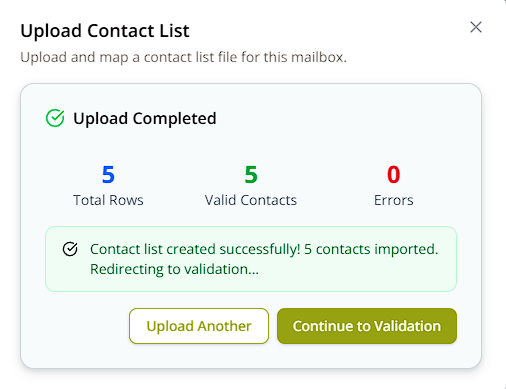
Validating owners
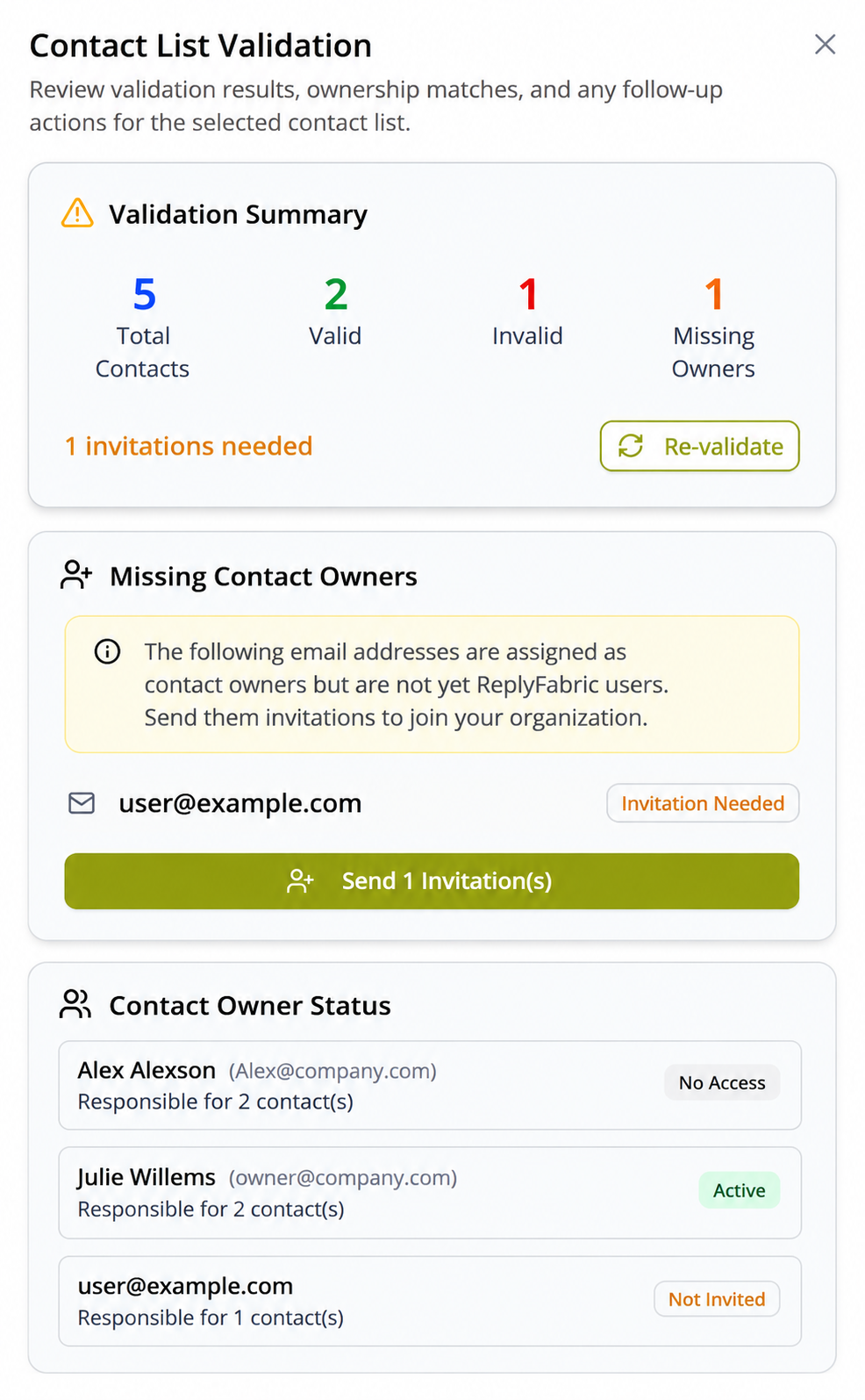
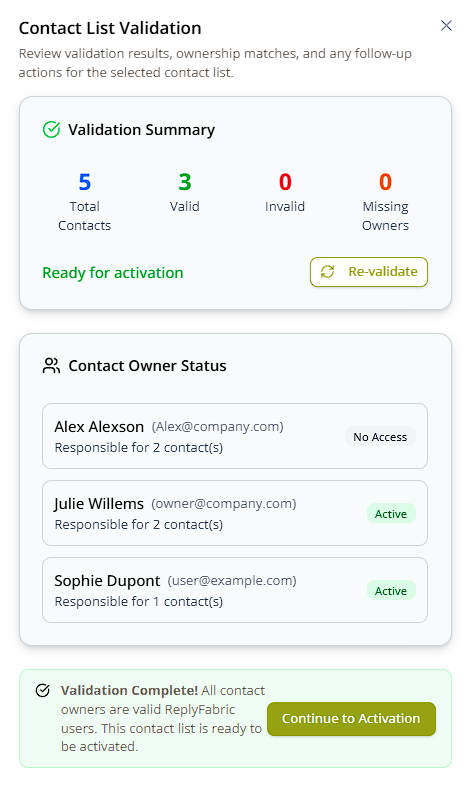
Every owner_email needs to be a real, active ReplyFabric user before the list can go live. If one isn't yet,
ReplyFabric flags it and offers to send them an invitation directly from the validation screen — and once every
owner is valid, the list is ready to activate:
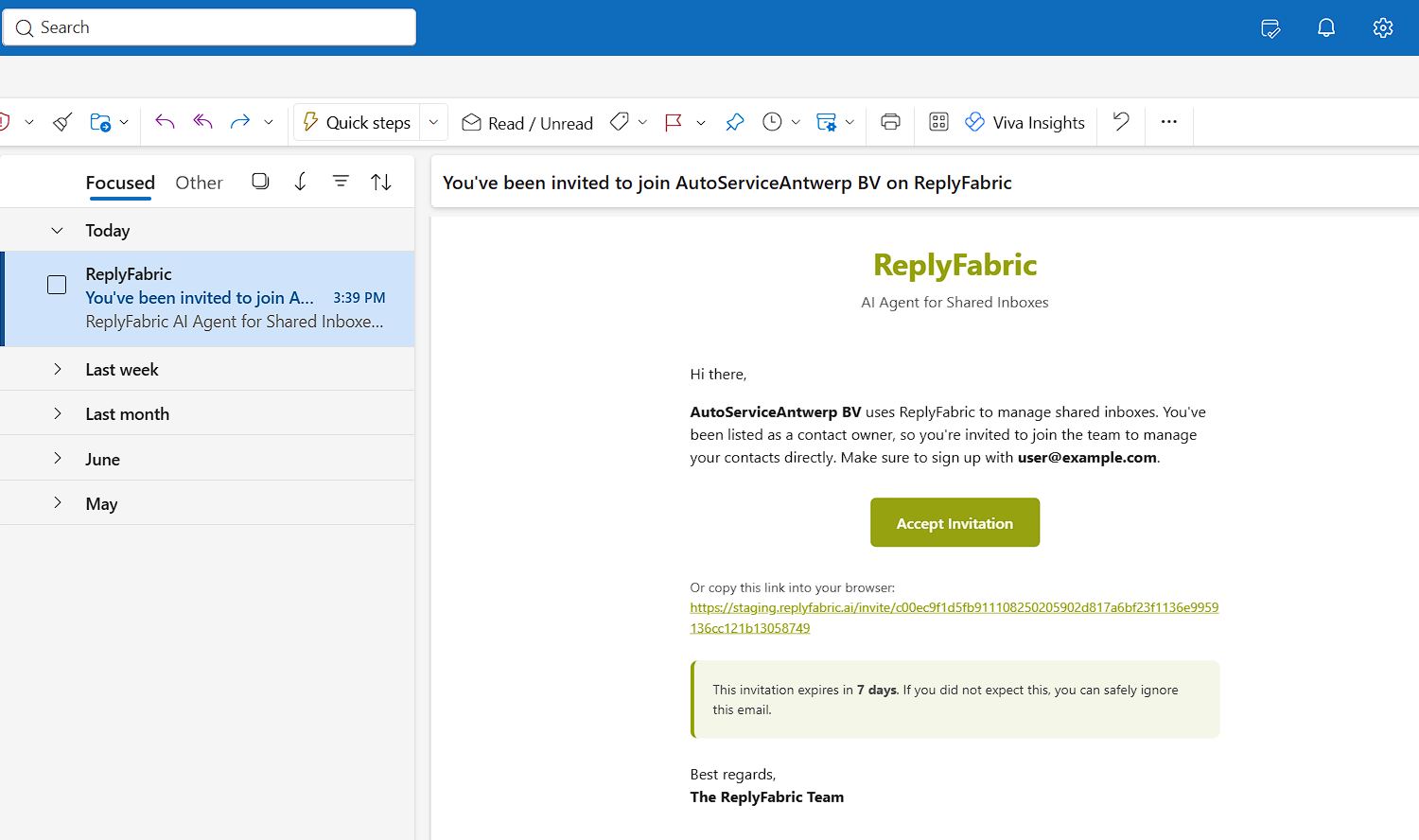
Here's exactly what that teammate receives — worth knowing before you send it, so you know what to tell them to expect:
Activating it
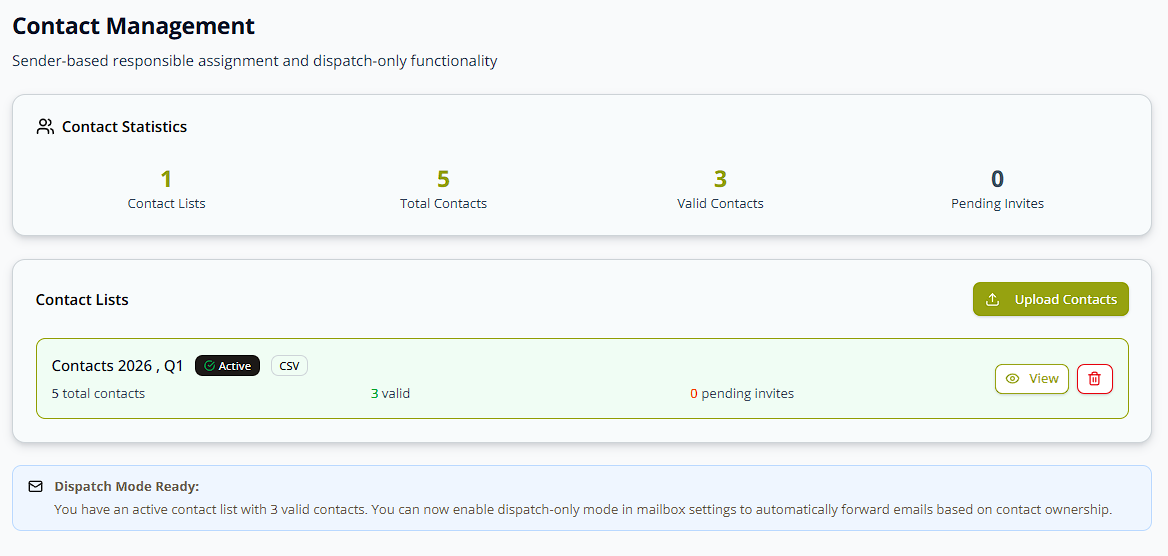
From the Contacts overview, click Activate on a validated list.
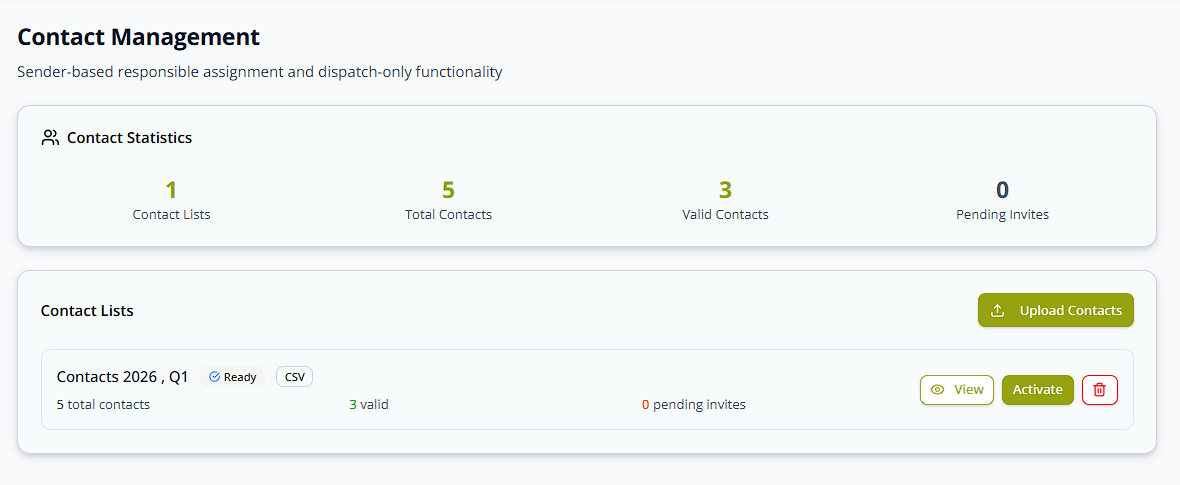
Once active, a Dispatch Mode Ready prompt appears, pointing you at Dispatch-Only Mode if you want ReplyFabric to forward by ownership instead of by category.
Seeing it work
Here's the effect in practice. Ruben emails in about an appointment, and his contact record's owner is Alex Lyor:
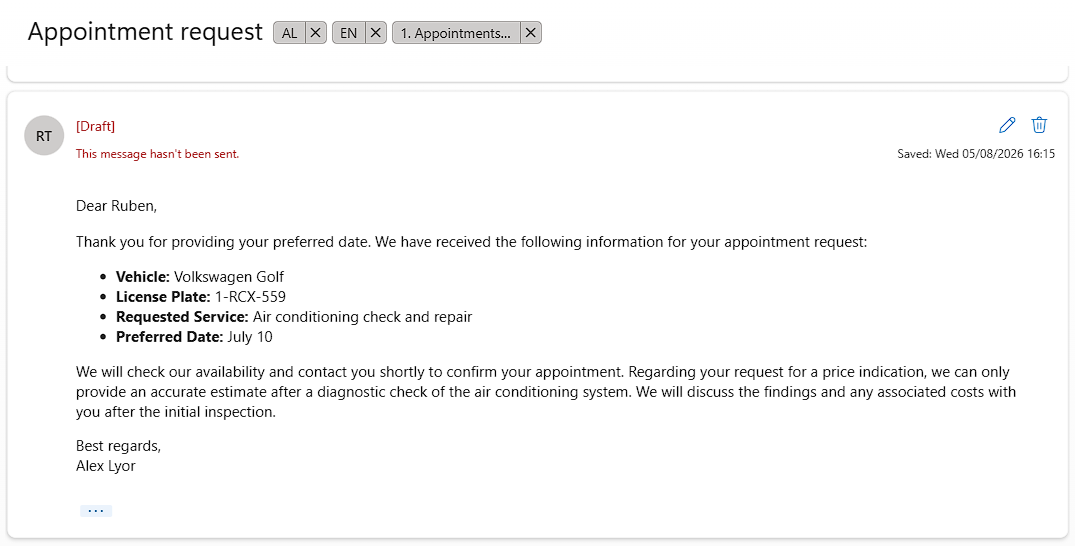
Because Ruben's email matched that contact, Alex becomes this email's responsible person — which shows up two
ways: the thread carries AL, Alex's initials, as its Internal Responsible Initials label (see
Mailbox Settings: Provider-Side Interaction), and the
AI-drafted reply signs off as Alex Lyor — [YourName] falling back to the responsible person here, following
the same sender → responsible person → mailbox name order described in
Category Management.
What's next
- Category Management: Settings, Templates & Persona — assign "Contact list, then category default" as a category's Responsible assignment source.
- Mailbox Settings: Details & Dispatch-Only Mode — forward by contact ownership mailbox-wide, bypassing categorization entirely.